Add player sprites
Get resources
You can take the resources in the Google Drive Resources folder. When you got this just create a new folder for the player in the "Assets/Import/Sprites" folder if needed.
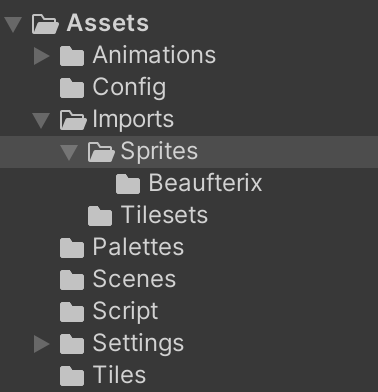
This new folder have to take the name of the player. You can find it in the Playable Characters section.
Split sprites
Import Settings: Select the sprite sheet file in the Unity Editor. In the Inspector window, ensure the following import settings are applied:
Texture Type: Sprite (2D and UI)
Sprite Mode: Multiple
Pixels Per Unit: 32 (since each cell is 32x32 pixels)
Filter Mode: Point (no filter)
Compression: None
Click on "Apply" to confirm the changes.
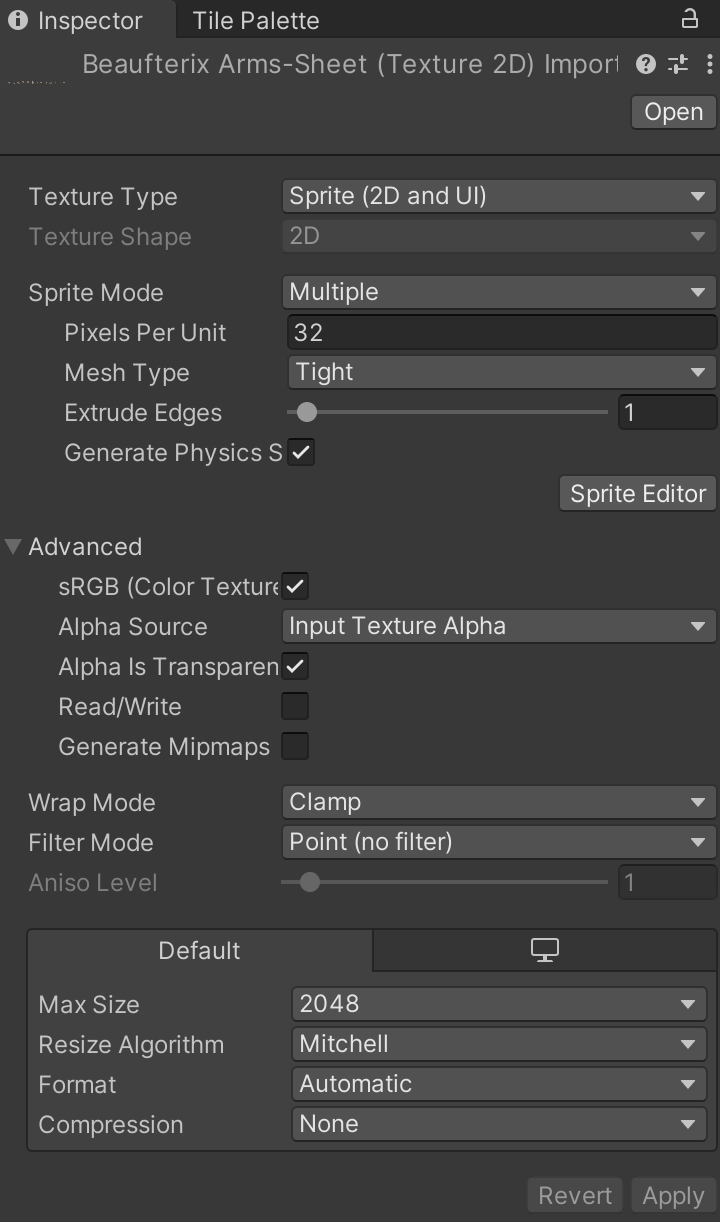
Split sprites : After setting the correct parameters in the inspector section, you need to split the sprites. To do this, press the Sprite Editor button. This opens a new window in Unity. In this window, we can see our previously imported .png file. To separate the cells, you need to click on the Slice button at the top left. In the Type dropdown menu, select Grid By Cell Size, and for Pixel Size for both X and Y, set the value to 32. Press the Slice button to separate your cells. You will see lines appearing that correctly separate your cells. Once that's done, you can press the Apply button at the top right of the window. Now, you can close the Sprite Editor window. Your sprites are now separated, and you can use them directly in Unity.